How to Choose Accounting Software for Your Small Business in 2026
20
minute read
7
sections
October 8, 2026
last updated
Ahmed Raza
reviewed by

Choosing accounting software sounds simple.
Until you actually start looking.
If you want to know how to choose accounting software for your small business, this guide starts with your needs, not a sales pitch.
You search for the best accounting software for small businesses and suddenly you are comparing QuickBooks, Xero, FreshBooks, Zoho Books, Wave, Sage, dozens of pricing plans, hundreds of features, and terms you may have never heard before.
Double-entry. Bank reconciliation. Accounts payable. Payroll. Inventory. Tax compliance. Integrations.
It can get confusing very quickly.
But here’s the thing.
You probably don’t need the software with the most features.
You need the software that handles what your business actually does, works in your country, fits your budget, and does not make your everyday bookkeeping harder than it needs to be.
That is what this guide is about.
I’ll show you what to look for, what you can safely ignore, how to compare the real cost, and how to test accounting software before you commit to it.
And most importantly, you should choose based on your business, not because someone online says one particular accounting platform is the best.
Editorial note: Updated October 8, 2026. Plan examples below use US editions unless stated otherwise. Features, prices, bank connections, and tax rules vary by country and can change. Confirm the current plan on the provider’s website before buying. This guide is general information, not tax advice.
In this guide
- Quick Answer: How to Choose Accounting Software for a Small Business
- Why Choosing the Right Accounting Software Matters
- Phase 1: Define What You Need
- Step 1: Understand What Your Business Actually Needs
- Step 2: Decide Whether You Need Basic or Advanced Accounting Software
- Phase 2: Evaluate the Features That Matter
- Step 3: Look at the Core Accounting Features
- Step 4: Decide Whether You Need Payroll
- Step 5: Decide Whether You Need Inventory Management
- Step 6: Check Tax and Compliance Features
- Step 7: Check Integrations
- Step 8: Consider Ease of Use
- Before You Commit: Compare the Real Cost and Your Exit Options
- Final Checklist: Choose the Software That Fits Your Business
Quick Answer: How to Choose Accounting Software for a Small Business
At a minimum, check whether your accounting software can:
- Handle the tax rules in your country
- Connect to your bank accounts
- Make bank reconciliation easy
- Create and track invoices
- Track expenses
- Capture receipts
- Produce profit and loss reports
- Produce balance sheets
- Show cash flow, through a statement or suitable reports
- Handle payroll or connect to your payroll software if you have employees
- Track inventory if you sell physical products
- Connect with the other tools you already use
- Give your accountant access
- Provide enough users for your team
- Offer multi-factor authentication
- Keep your financial data secure
- Let you export your data if you decide to leave
- Stay within your budget after any introductory discount ends
Not every business needs every feature, and not every entry-level plan includes all of them. Use this as a requirements checklist rather than a promise about any particular product.
That last point is important.
Don’t choose accounting software because the first few months are cheap.
Look at what you will actually pay once the promotion ends.
Why Choosing the Right Accounting Software Matters
Accounting software is one of those things that looks like a small monthly expense until you choose the wrong one.
Then you start paying for it with your time.
Maybe the software cannot connect to your bank, so you enter transactions manually.
Maybe your ecommerce store does not connect properly, so you enter sales twice.
Maybe your accountant needs reports that the software cannot produce easily.
Or maybe you buy an expensive plan because it has 100 features, but you only use five of them.
None of that is ideal.
The right software should make your accounting easier, not give you another job.
Here are some of the problems you can run into with the wrong software:
Reporting problems
If transactions are entered incorrectly or bank reconciliation is not kept up to date, your reports may not show what is really happening in your business.
Tax problems
If the software does not handle your sales tax, VAT, GST, or other tax requirements properly, you may end up doing extra work or making mistakes.
Duplicate work
If your payment processor, online store, or other tools do not connect properly, you may have to enter the same information more than once.
Unexpected costs
The price you see on the homepage is not always the price you will pay.
Extra users, payroll, inventory, payments, and other add-ons can push the monthly cost much higher.
Moving to another system
Changing accounting software later is possible, but moving years of financial data is not something you want to do every few months.
Outgrowing the software
A plan might be perfect today but become frustrating when your business grows.
That is why choosing accounting software is worth thinking about before you hand over your financial data to it.
Phase 1: Define What You Need
Step 1: Understand What Your Business Actually Needs
Start with your business.
Not the software website.
Every accounting software company has a long list of features. If you start there, everything will look important.
Instead, answer a few simple questions first.
Write down your answers.
What does your business sell?
Services, physical products, or both?
Where do you file your taxes?
If you are in the US, which state?
Do you collect sales tax, VAT, or GST?
How many invoices do you send each month?
How many bills do you pay each month?
How many bank and credit card transactions do you have?
Do you have employees?
Do you work with contractors?
Do you keep inventory?
Do you sell in more than one currency?
Do you run more than one business?
How many people need access to your accounting?
Do you work with an accountant or bookkeeper?
If yes, ask which accounting software they prefer.
Which other tools need to connect to your accounting software?
For example:
- Shopify
- Amazon
- Stripe
- PayPal
- Square
- Payroll software
- CRM
- Inventory software
And finally:
How much are you actually comfortable spending every month?
Now divide your requirements into three groups:
Must-have
Things your business cannot operate without.
Nice-to-have
Things that would make life easier but are not essential.
Not needed
Features you probably will never use.
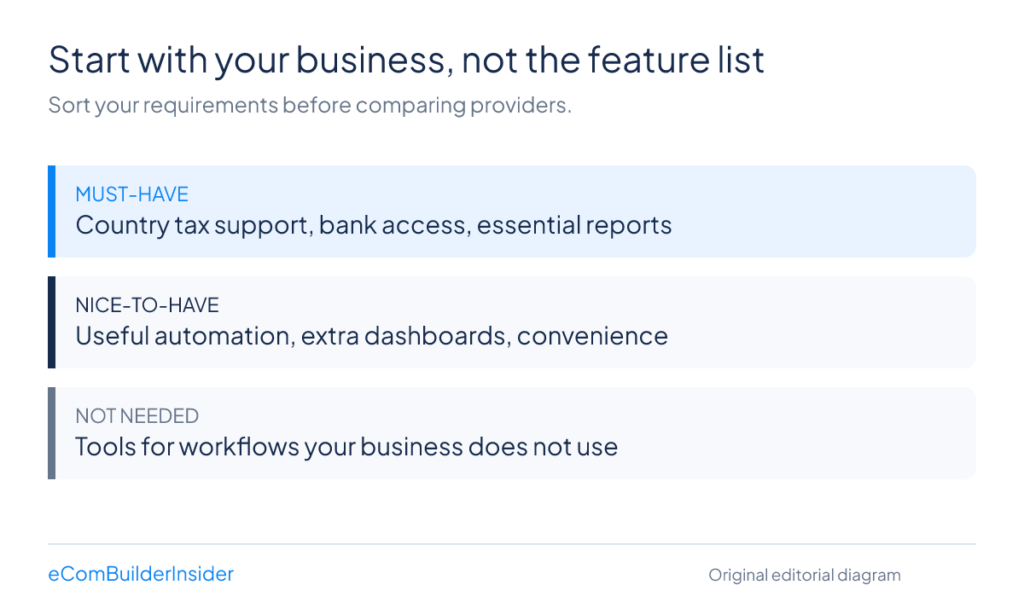
This simple list can remove a lot of confusion.
You may discover that you don’t need the most expensive accounting software at all.
Step 2: Decide Whether You Need Basic or Advanced Accounting Software
Most small businesses fall into one of two groups.
The first group has fairly simple accounting needs.
Maybe you are a freelancer, consultant, or small service business.
You have one owner or a small team. You send invoices, track expenses, connect your bank account, and need your financial reports at tax time.
If that sounds like you, basic accounting software may be more than enough.
You might even be perfectly fine with a free option. Our Wave Accounting review explains where a free plan can work and where you may need paid features.
The second group has more complicated needs.
You may have:
- Employees
- Inventory
- Several users
- Different user permissions
- Bills that need approval
- Project costing
- Multiple currencies
- Multiple locations
- More than one legal entity
This is where you start looking at more advanced accounting software.
Most major cloud accounting platforms use double-entry accounting behind the scenes.
You do not necessarily need to understand how it works to use the everyday features.
The important part is what you can actually do with the software.
Can your team approve bills?
Can you control what each user can see?
Can you track inventory?
Can you manage projects?
Can you get the reports you need?
Those are the things that matter.
And if your business is still simple, don’t buy an expensive plan just because you think you might need it someday.
You can usually upgrade later. Multiple legal entities often need separate subscriptions, so confirm that before buying.
Phase 2: Evaluate the Features That Matter
Step 3: Look at the Core Accounting Features
Now we can start looking at the actual software.
There are a lot of features to compare, but a few matter much more than others.
Invoicing
If you send invoices to customers, pay close attention to this.
Ask yourself:
How easy is it to create an invoice?
Can you save your products or services and reuse them?
Can you create recurring invoices?
This is useful if you charge customers every month.
Can you see whether an invoice has been sent, viewed, and paid?
Can customers pay online?
Some software lets you add a payment button so customers can pay by card or bank transfer.
Remember that payment processors usually charge their own transaction fees.
Can the software automatically remind customers about overdue invoices?
This can save you from sending awkward payment reminder emails yourself.
Can you customize the invoice?
You may want to add your logo, payment terms, tax information, and other details required in your country.
Also check the limits.
Some cheaper plans limit the number of invoices or customers you can have.
For example, the US Xero Early plan allows 20 invoices per month, while FreshBooks Lite allows 5 billable clients. These are different limits: invoice volume versus client count. FreshBooks counts active and archived clients towards its limit.
If you send a lot of invoices, those limits matter. If you mainly bill for services, see our FreshBooks for freelancers guide for a closer look at that workflow.
Expense Tracking
Your business does not just make money.
It spends money too.
Good accounting software should make it easy to track those expenses.
Check whether you can:
- Import expenses from your bank
- Add expenses manually
- Capture receipts
- Categorize expenses
- Reimburse employees, if needed
- Mark expenses as billable
- Add billable expenses to customer invoices
Receipt capture is one of those features you may not think about until you need it.
Keeping a receipt attached to the transaction is much easier than searching through emails, folders, or a box full of paper when you need to prove an expense later.
Bank Feeds and Bank Reconciliation
If I had to tell you to pay special attention to one accounting feature, this would be near the top of my list.
A bank feed connects your accounting software to your bank.
Your transactions can then appear automatically inside the accounting software instead of you entering everything manually.
That saves time.
Then there is bank reconciliation.
This is basically checking that the transactions in your accounting software match what actually happened in your bank account.
For example, the software might see a $500 deposit and suggest that it matches invoice number 104.
You check the amount and the supporting details, then confirm the match.
Done.
You can also create rules for transactions that happen regularly.
For example, your monthly software subscription can be categorized the same way each month, subject to your review.
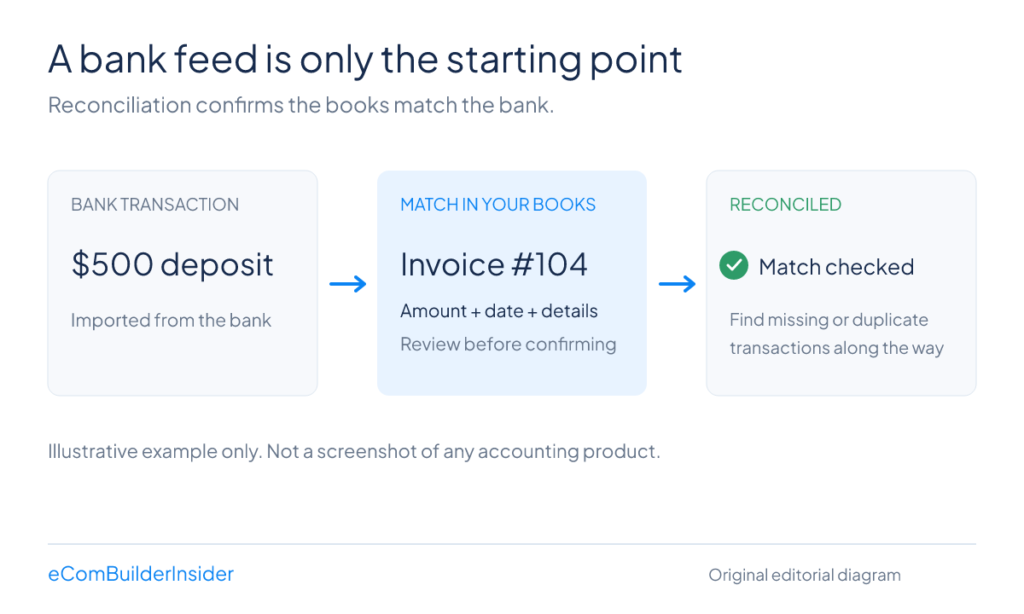
This matters because reconciliation helps you find missing transactions, duplicate entries, bank errors, and sometimes suspicious transactions.
Without proper reconciliation, your financial reports may not tell the full story.
Before choosing software, check two things:
Does your bank connect to it?
And:
Is automatic bank importing included in your plan?
These things can vary by country, bank, and pricing plan.
For example, Wave lists automatic bank imports as a paid Pro feature. Starter users can enter transactions or upload statements manually; some legacy accounts may have different entitlements. Bank support is not guaranteed, so test your own bank connection.
Accounts Payable and Bills
Accounts payable is simply the money your business owes other businesses.
For example, a supplier sends you an invoice and gives you 30 days to pay.
That is something your accounting software should be able to track.
A bills feature can help you see:
- What you owe
- Who you owe
- When payments are due
- Which bills have already been paid
Some software can also help you schedule or make payments directly.
If you only pay a few bills each month, you may not need a sophisticated system.
If you receive dozens of supplier invoices, it becomes much more useful.
You may also want approval workflows if several people are involved in paying bills.
Again, check the limits.
Xero’s US Early plan allows 5 bills per month. For QuickBooks, check the current edition’s bill tracking, payment, and approval features rather than assuming every plan handles them in the same way. Our QuickBooks pricing guide explains how to compare the plans.
Financial Reports
Accounting software is not just about recording transactions.
You want to understand what those numbers actually mean.
The most important reports include:
Profit and loss
Shows how much money your business made or lost during a particular period.
Balance sheet
Shows what your business owns, what it owes, and its overall financial position.
Cash flow statement
Shows where your cash came from and where it went. Check that the specific plan provides the statement or reporting your accountant needs; a dashboard cash forecast is not the same thing.
Your profit and your cash position are not always the same thing.
Accounts receivable aging
Shows who owes you money and how late those payments are.
Accounts payable aging
Shows who you owe and when those payments are due.
General ledger
Shows the transactions recorded in your accounts. Your accountant will often use this when checking your books.
Major accounting platforms offer many of these reports, but availability depends on the product and plan. Ask your accountant to confirm the required reports before subscribing.
The differences usually become more noticeable when you want advanced reporting, budgeting, forecasting, or reports by location, project, or department.
What About AI Features?
You will see AI everywhere in accounting software now.
Xero, QuickBooks, and Zoho all promote AI-assisted tools, although their names and availability change.
These tools can help categorize transactions, suggest bank matches, draft reminders, and answer questions about your numbers.
That sounds impressive.
But I would not choose accounting software just because it has AI.
Think of AI as a time saver.
During your free trial, test it with representative transactions.
See how accurate the suggestions are.
Also check whether you can review everything before it gets added to your books.
And check which pricing plan includes the AI features.
Availability can vary by product, country, and plan. If you are deciding between the two larger platforms, our Xero vs QuickBooks comparison looks at the wider bookkeeping workflow, not just AI.
Step 4: Decide Whether You Need Payroll
Payroll becomes important as soon as you hire your first employee.
Paying someone is easy.
Getting the taxes, filings, deductions, and deadlines right is the difficult part.
Before choosing software, ask:
How many employees do I have?
Where are they located?
Payroll rules depend on the country and, in the US, the state.
Do I pay contractors?
For US businesses, reportable nonemployee service payments generally use Form 1099-NEC. The IRS says the reporting threshold for payments made in 2026 is $2,000, compared with $600 before 2026. Exceptions apply, including backup withholding regardless of amount. Payment method, recipient type, and other rules can affect which form is required; check the IRS instructions or your accountant.
Also check whether the software actually handles payroll filings or simply calculates payroll.
There is a difference.
Some accounting platforms include payroll.
Others connect to a separate payroll service.
For example, in the US, as checked on October 8, 2026:
- QuickBooks payroll pricing varies by Workforce plan and accounting bundle. Compare the undiscounted base subscription, per-employee charges, and any extra services; do not assume the accounting subscription includes payroll.
- Xero Payroll powered by Gusto is listed as an optional add-on at $36 per month plus $6 per employee or contractor, in addition to the accounting plan.
- Wave Payroll lists a $40 USD monthly base fee plus $6 per active employee and $6 per independent contractor paid. Wave notes that its payroll tax-filing service excludes 1099 filings, so generating a form is not the same as filing it.
In the UK, payroll may be included or added separately depending on the Xero or Sage product and plan, with employee limits or additional charges. Confirm the local offer rather than relying on US pricing.
In Australia, employers generally use Single Touch Payroll-enabled software to report payroll information to the ATO, subject to applicable exemptions or concessions.
If you already use payroll software you like, check that it integrates with your accounting software.
You want wages and payroll taxes to flow into your books without unnecessary manual work.
Step 5: Decide Whether You Need Inventory Management
If you run a service business, you probably don’t need complicated inventory software.
A consultant, designer, marketing agency, or many trades businesses can usually focus on invoices, expenses, and accounting.
But if you sell physical products, inventory becomes much more important.
When you buy stock, it is usually recorded as an asset under an inventory-based accounting approach.
When you sell that stock, its cost becomes cost of goods sold, or COGS. Your accountant can confirm the method that applies to your business.
That is how you get a clearer picture of your actual gross profit.
Look for:
- Inventory quantities
- Stock level alerts
- Automatic COGS calculations
- Purchase orders
- Product-level reporting
- Ecommerce integrations
- Automatic stock updates
For example, you may want your Shopify orders to flow into your accounting system without manually entering every sale.
Different accounting platforms handle inventory very differently.
QuickBooks Online’s US Plus and Advanced plans offer inventory tracking; confirm the current limits and any add-on charges for the edition you choose.
Zoho Books’ US plan comparison lists inventory from Professional, with warehouses, serial numbers, and batch tracking on Elite.
Xero’s core inventory supports up to 4,000 items. Inventory Plus is a separate option for more complex selling workflows; availability and eligible plans vary by market.
Wave does not offer a dedicated stock-management module comparable to these tools.
If you have multiple warehouses, manufacture products, need serial or batch tracking, or sell through several marketplaces, dedicated inventory software may make more sense.
In that setup, your inventory system handles the stock while your accounting software handles the financial side.
For a selling-channel-focused comparison, see our accounting software guide for ecommerce sellers.
Step 6: Check Tax and Compliance Features
This is one area where you really need to pay attention to your country.
Software that works perfectly for a US business may not be the right choice for a business in the UK, Australia, or another country.
United States
The US does not have a federal sales tax.
Sales tax is handled by individual states, with local taxes in many areas.
Accounting software can help calculate and track sales tax, but businesses selling across several states may need dedicated sales tax software.
Payroll also involves federal and state requirements.
United Kingdom
The UK has Making Tax Digital, or MTD.
VAT-registered businesses generally need to keep digital VAT records and submit VAT returns using compatible software, unless exempt.
MTD for Income Tax is also being introduced in stages for qualifying sole traders and landlords.
According to HMRC’s MTD guidance:
- Qualifying income over £50,000 in the 2024–25 tax year brings a start date of April 6, 2026.
- Qualifying income over £30,000 in the 2025–26 tax year brings a start date of April 6, 2027.
- Qualifying income over £20,000 in the 2026–27 tax year brings a start date of April 6, 2028.
Qualifying income is not the same as profit, and exemptions may apply.
If you are in the UK, make sure the accounting software you choose is compatible with the requirements that apply to your business.
Australia
GST and Single Touch Payroll are two important areas to check.
Make sure the software supports the reporting requirements that apply to your business.
Europe
E-invoicing rules are also changing across Europe.
For example, Germany’s finance ministry explains that domestic businesses generally need to be able to receive structured e-invoices from January 1, 2025. Issuing requirements have transitional rules, and an ordinary PDF is not a structured e-invoice.
In France, the tax authority’s timetable requires businesses within the reform’s scope to receive e-invoices from September 1, 2026. Large and mid-tier businesses must also issue them from that date; small and micro-businesses have until September 1, 2027 for issuing and e-reporting requirements.
If you operate in Europe, don’t just look at whether software supports “Europe.”
Check the specific country where your business operates.
What Should You Check?
Before buying anything, ask:
Can the software calculate the correct tax?
Can it produce the reports I need?
Can it file directly with the tax authority if that is available?
Does it handle payroll taxes?
Does it work with the tax software my accountant uses?
And remember, this is not tax advice.
Your tax obligations depend on your situation, so check with your tax authority or accountant when you are unsure.
Step 7: Check Integrations
Your accounting software should not live on an island.
Your business probably already uses several other tools.
Maybe you sell through Shopify.
Maybe customers pay through Stripe.
Maybe you use PayPal.
Maybe you have separate payroll software.
The more of these systems you can connect, the less information you have to enter manually.
Common integrations include:
- Ecommerce platforms such as Shopify and Amazon
- Payment processors such as Stripe, PayPal, and Square
- Banks
- Payroll software
- CRM systems
- Expense management tools
- Inventory systems
- Project management software
- Time tracking tools
- Tax software
But don’t get too impressed by a huge integration number.
A large app marketplace sounds great.
But what really matters is whether it connects to your tools.
Write down the three to five apps your business cannot operate without.
Then check whether each one works with the accounting software you are considering.
Also check whether the integration costs extra.
Sometimes the accounting software supports an integration, but the third-party app still has its own monthly fee.
For ecommerce, test refunds, processing fees, taxes, and settlement payouts as well as normal sales. A bank payout is not necessarily the same as your gross sales.
Step 8: Consider Ease of Use
The most powerful accounting software in the world is not very useful if you hate using it.
Especially if you are the person doing the bookkeeping yourself.
You don’t need software with 500 features.
You need software that lets you get your everyday tasks done without constantly searching Google for instructions.
Look at:
Dashboard
Can you quickly see your cash, unpaid invoices, bills, and other important numbers?
Navigation
Can you find what you need without opening the help center every five minutes?
Setup
How easy is it to connect your bank, import customers, and set your opening balances?
Invoice creation
Can you create and send a normal invoice quickly?
Bank reconciliation
Does matching transactions feel easy or frustrating?
Reports
Can you find and understand the reports you actually need?
Mobile app
Can you do basic tasks from your phone when you are away from your computer?
This is why free trials are so useful.
Don’t just look at screenshots.
Actually use the software.
Create a test invoice.
Connect a bank account if you are comfortable doing so, or import a small sample of transactions.
Enter an expense.
Reconcile transactions.
Run a report.
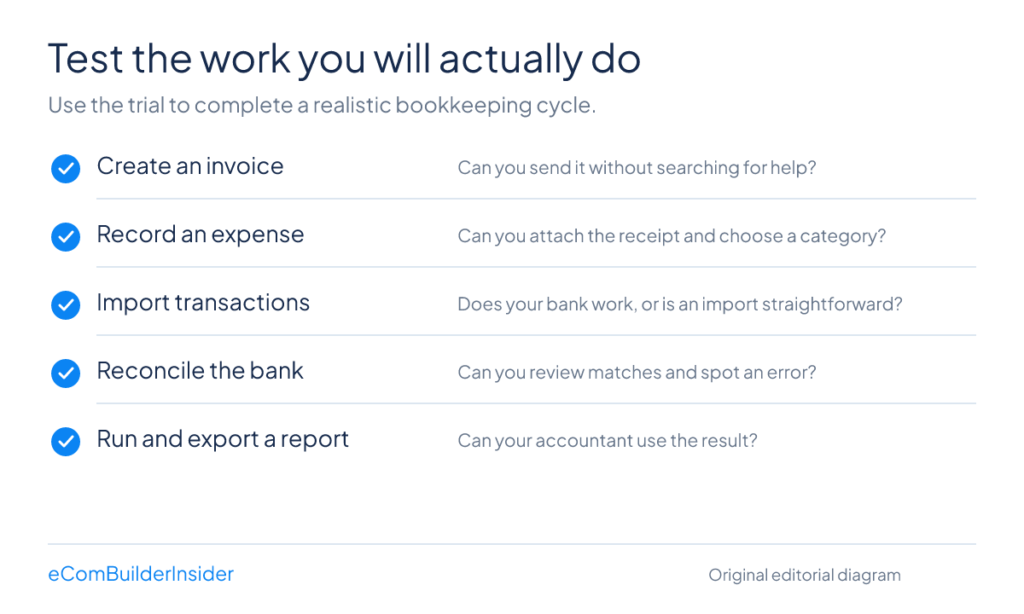
Then ask yourself one simple question:
Could I happily use this every month?
Before You Commit: Compare the Real Cost and Your Exit Options
Make a shortlist of two or three platforms that pass your must-have checklist. Then compare their normal prices, not just their introductory discounts.
Your real monthly cost can include:
- The accounting subscription after the promotion ends
- Payroll base fees and per-person charges
- Extra users or additional business subscriptions
- Inventory, receipt capture, or reporting add-ons
- Integration subscriptions
- Payment-processing fees based on your transaction volume
- Setup, migration, training, and bookkeeping support
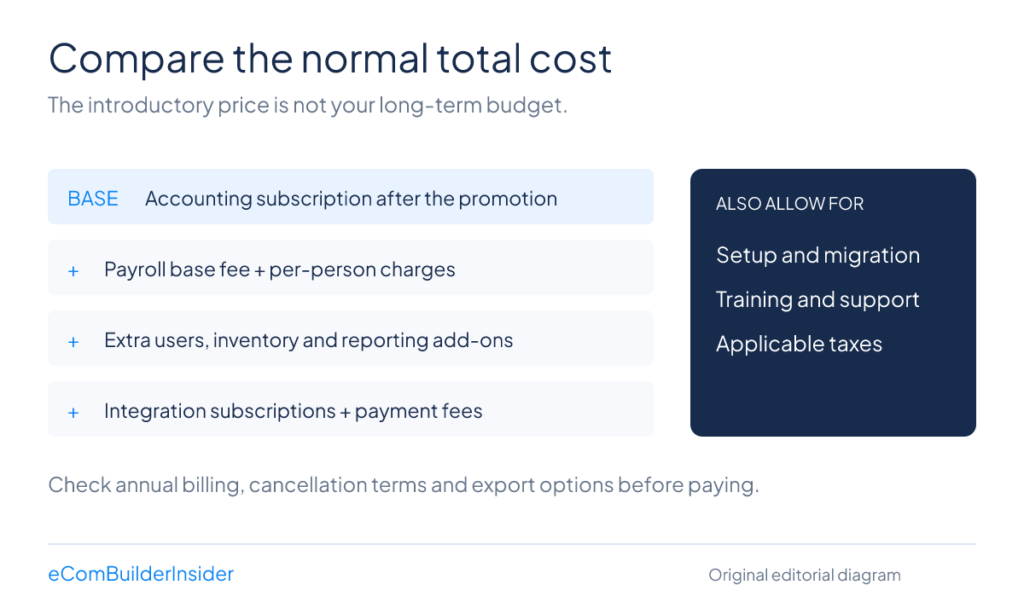
Check whether the listed price assumes annual billing and whether taxes are included. For another way to compare the trade-offs, see our QuickBooks alternatives guide.
Before paying, test multi-factor authentication, user permissions, and the export process. Download sample invoices, a general ledger, contacts, and the reports your accountant needs. Ask how receipt attachments and your full transaction history can be exported, not just whether there is a CSV button.
Agree a sensible migration date with your accountant, reconcile the opening balances, and keep an accessible archive of your old records. Don’t cancel the old system until you have verified what was transferred and what must be retained separately.
Final Checklist: Choose the Software That Fits Your Business
The best way to choose accounting software is to work backwards from your business, not forwards from a feature list.
Before you commit, confirm these five things:
- It handles your country’s tax and reporting requirements.
- Your bank and essential business tools connect reliably.
- The plan includes the users, invoices, bills, payroll, and inventory features you actually need.
- You can complete everyday bookkeeping tasks and export your records without unnecessary friction.
- The normal total cost fits your budget after the introductory discount ends.
If two platforms pass those checks, ask your accountant to review the shortlist and use the free trials to decide which feels easier in practice.
You don’t need the most complicated accounting software.
You need the one that helps you keep accurate books and get on with running your business.
Keep exploring: all my buying guides, reviews and comparisons are in the Accounting Software Resource Center.